Ever tried installing an APK and got hit with “App not installed” or “Package installer failed”? Yeah, it’s annoying. The problem? You probably downloaded the wrong version for your phone’s processor.
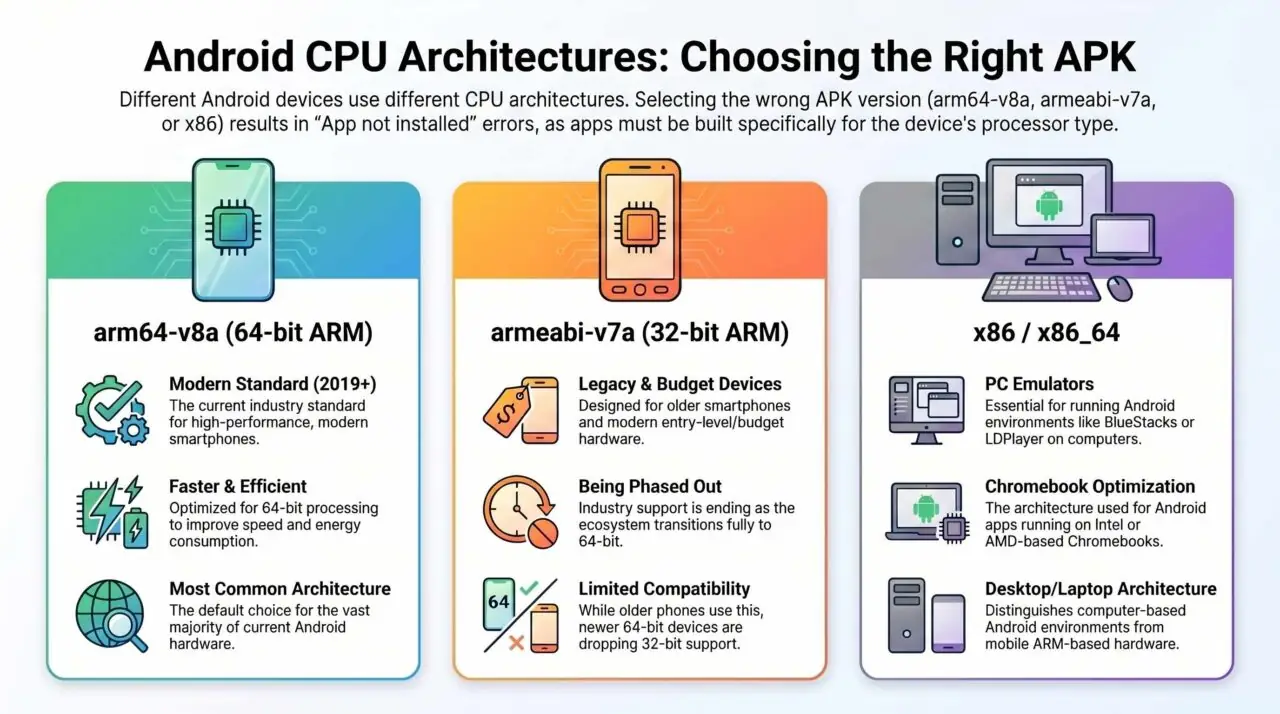
When you’re browsing APK download sites, you’ll see files labeled arm64-v8a, armeabi-v7a, or x86. These aren’t random codes—they tell you which type of processor the app is built for. Pick the wrong one, and it simply won’t install.
Here’s how to figure out which one your phone needs, plus a quick explanation of what these terms actually mean.
The Quick Fix: How to Check Your Architecture
The easiest way? Grab a free hardware info app. CPU-Z, Device Info , or AIDA64 all work great.
Step-by-Step (Using CPU-Z)
- Download and open CPU-Z
- Tap the System tab
- Look for Kernel Architecture (some apps call it Instruction Set or ABI)
- Match what you see with this guide:
Download Cheat Sheet
- AArch64 or ARM64 → Download arm64-v8a (99% of modern phones)
- ARMv7 or armeabi-v7a → Download armeabi-v7a (older devices)
- x86 or x86_64 → Download x86 or x86_64 (PC emulators like BlueStacks)
- Universal APK available? → Download it. Works on everything, but takes more space.
What Do These Terms Actually Mean?
In Android, these labels refer to the ABI (Application Binary Interface). Think of it as the “language” your phone’s processor speaks. The app needs to speak the same language, or it won’t run.
arm64-v8a (64-bit ARM)
This is what almost every modern Android phone uses. If your phone came out in the last 5-7 years, it’s probably this. It’s faster, more efficient, and can handle way more RAM than older chips.
armeabi-v7a (32-bit ARM)
The old standard. For years, this was the default for all Android phones. Now you’ll only find it on really old devices, super cheap phones, or smartwatches.
armeabi (Ancient 32-bit ARM)
A relic from Android’s early days (think Android 2.x and 4.x). Based on ARMv5 and ARMv6 chips, it was painfully slow even back then. Google officially killed support in 2018. Unless you’re trying to resurrect an original HTC Dream, you’ll never see this.
x86 and x86_64
These are for Intel and AMD processors. A few years back, companies like Asus made Android phones with Intel Atom chips. That experiment died. But you’ll still see x86 APKs because they’re used by Android emulators on PC (BlueStacks, LDPlayer, Windows Subsystem for Android) and some Chromebooks.
Why This Matters: The End of 32-bit
You might be thinking: “If I have a 64-bit phone, can’t I just install a 32-bit app?”
Used to work. Not anymore.
For a long time, 64-bit phones could run 32-bit apps just fine. But the industry is killing off 32-bit support:
- Google’s Mandate: Since August 2019, all apps on Google Play must have a 64-bit version.
- Hardware Changes: New flagship chips (Snapdragon 8 Gen 3, Google Tensor G3) have physically removed 32-bit support.
- Software Block: Starting with Android 14, the OS actively blocks old 32-bit apps from installing.
Try installing an armeabi-v7a APK on a brand new phone? The system will reject it. The future is 64-bit only.
What About “Universal” APKs?
Developers can bundle both 32-bit and 64-bit code into one file—called a Fat APK or Universal APK. It installs on anything, but wastes storage space because it includes code your phone doesn’t need.
That’s why Google Play now uses App Bundles (.aab). The system detects your phone’s architecture and sends you a “split APK” with only the code you need. Saves space, loads faster.
Quick Recap
- Most modern phones = arm64-v8a
- Old phones = armeabi-v7a
- PC emulators = x86 or x86_64
- Not sure? Download CPU-Z and check the System tab
- Universal APKs work everywhere but take more space
Now you know exactly which APK to download. No more “App not installed” errors.